What Shimly does
The office side of a residential construction company, from the first inquiry to the warranty call a year later. Each part below says which plan it's in.
Estimates your clients sign online
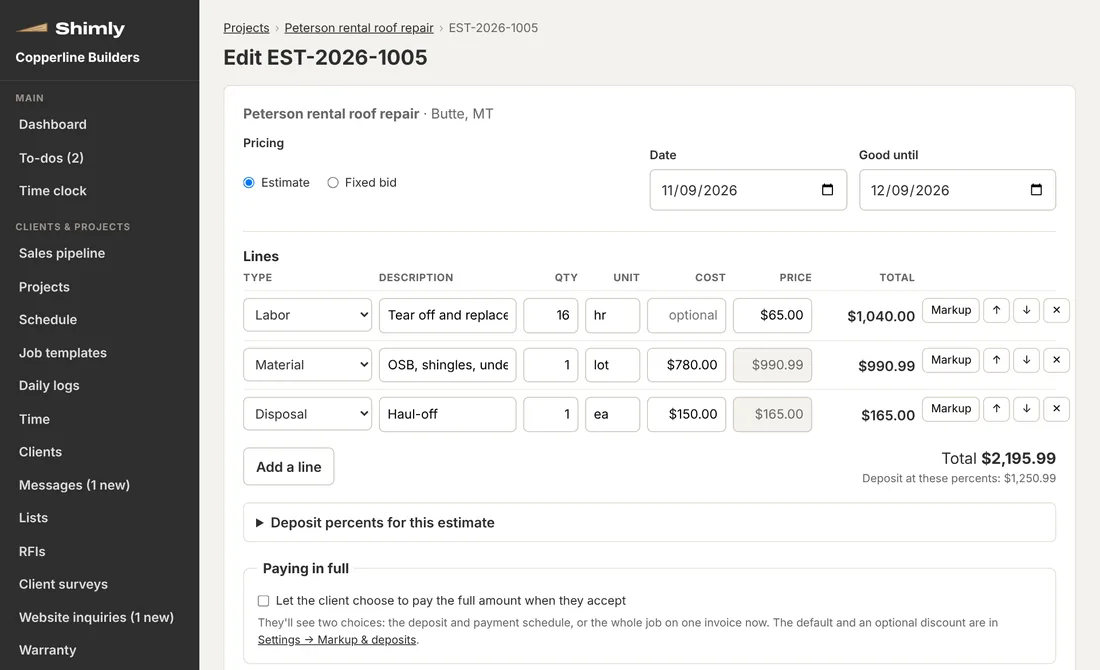
Build estimates from your own price catalog. Your markup for materials, labor and subs is applied for you, and the client sees a clean page they can accept and sign from their phone.
- Contingency, overhead and profit by category, set once
- Deposit and milestone payment schedule on every estimate
- Typed-name e-signature with the time and device recorded
- A statement of work by phase, with what isn't included, signed together with the estimate
- Ask someone you trust to look over an estimate and suggest changes
Invoices and online payments
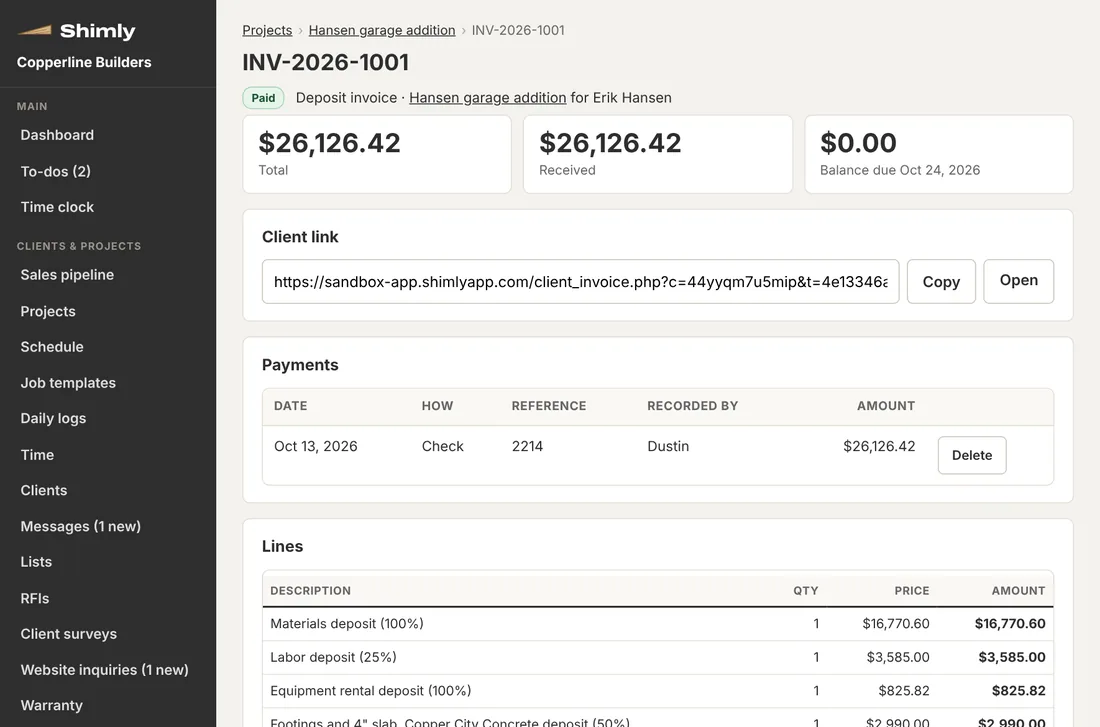
Deposit, milestone and final invoices come from the accepted estimate. Clients pay by bank transfer, or card if you choose, straight into your own Stripe account.
- Clients can choose to pay the whole job up front when they accept, with a discount if you offer one
- The final invoice credits everything already paid
- Record checks, cash and Zelle too
- Email activity shows when the client opened it
- Payment receipts go out in your name
QuickBooks Online or Xero, kept up to date
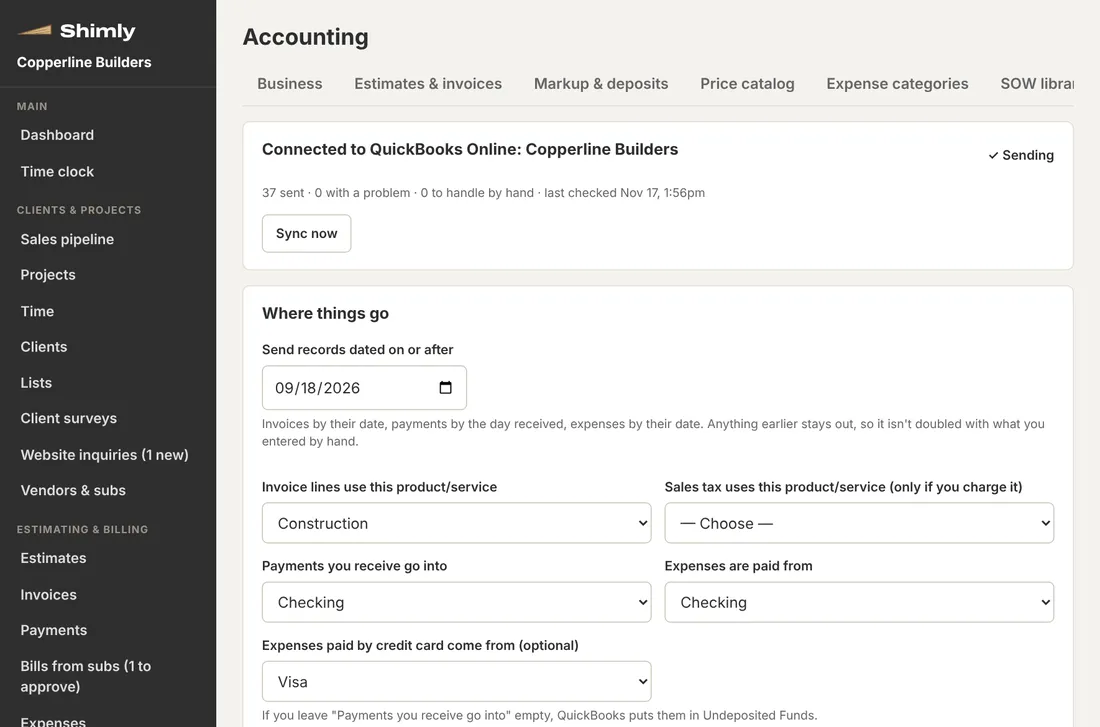
Connect your QuickBooks Online or Xero company once. Shimly sends your clients, invoices, payments and expenses over a few minutes after each change, so nobody types them in twice.
- One way, from Shimly to your books; your bookkeeper keeps working there as usual
- You choose the income account, the bank accounts, and the account for each expense category
- Starts from a date you pick, so what you already entered by hand isn't doubled
- Anything that can't go over is listed with the reason, and goes once it's fixed
- Reconnect any time without anything being sent twice
A sales pipeline for your leads
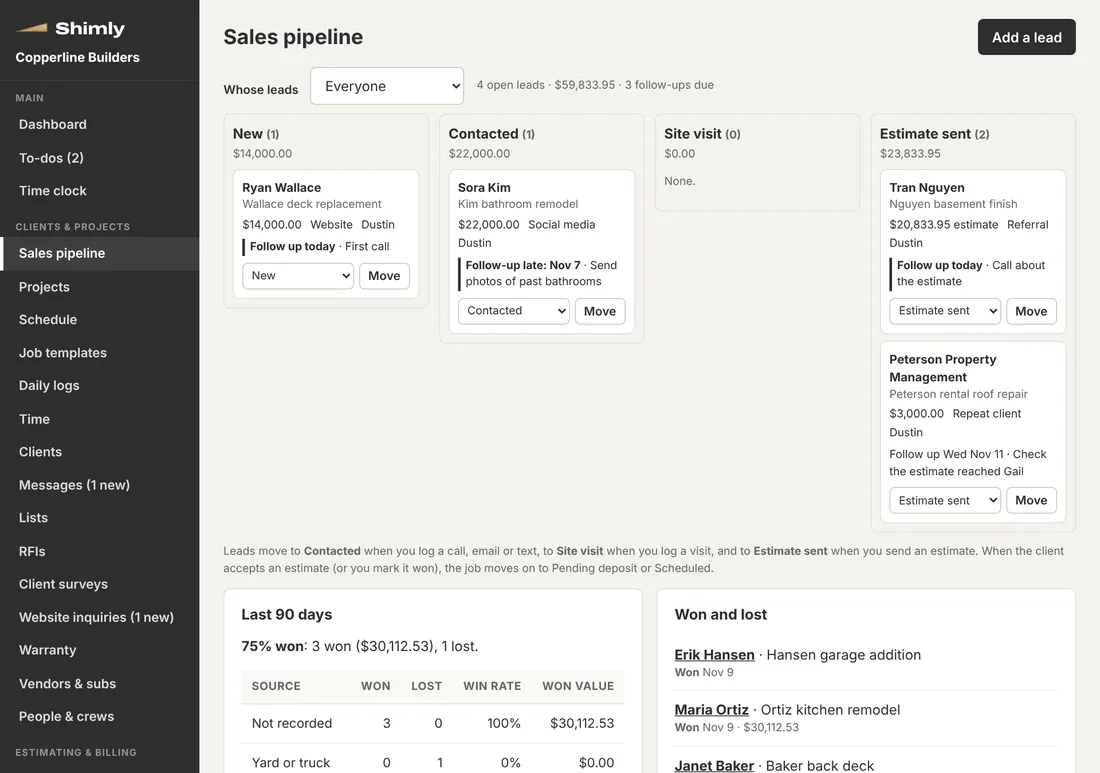
Every lead on one board, from the first call to the signed estimate, with a follow-up date so nobody goes cold. Leads move along by themselves as you log calls, visits and estimates.
- A follow-up date and note on every lead, and one morning email with the ones due
- A website inquiry goes on the board in one click, and sending the estimate moves the lead along
- Win rate and won value by where leads came from
- Lost leads keep the reason, so you can see why
A project page for each client
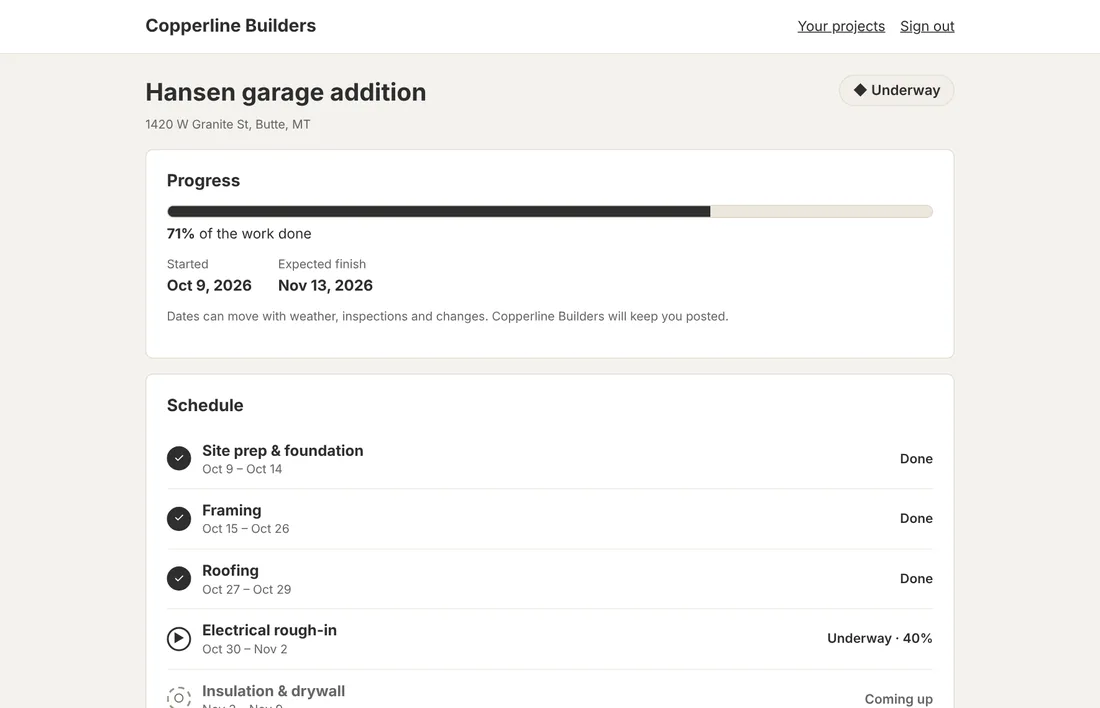
Clients sign in with a link we email them and see their project: progress and dates, the photos you share, their estimate and documents, and invoices to pay.
- No passwords for your clients
- Send a client a link to fill in or check their own address and phone, with no account
- You choose which photos they see
- Pro and Complete add messages, choices to make, shared documents and daily updates
- Complete adds reporting a warranty problem with photos
- Fewer "how's it going?" calls
Schedule and crews
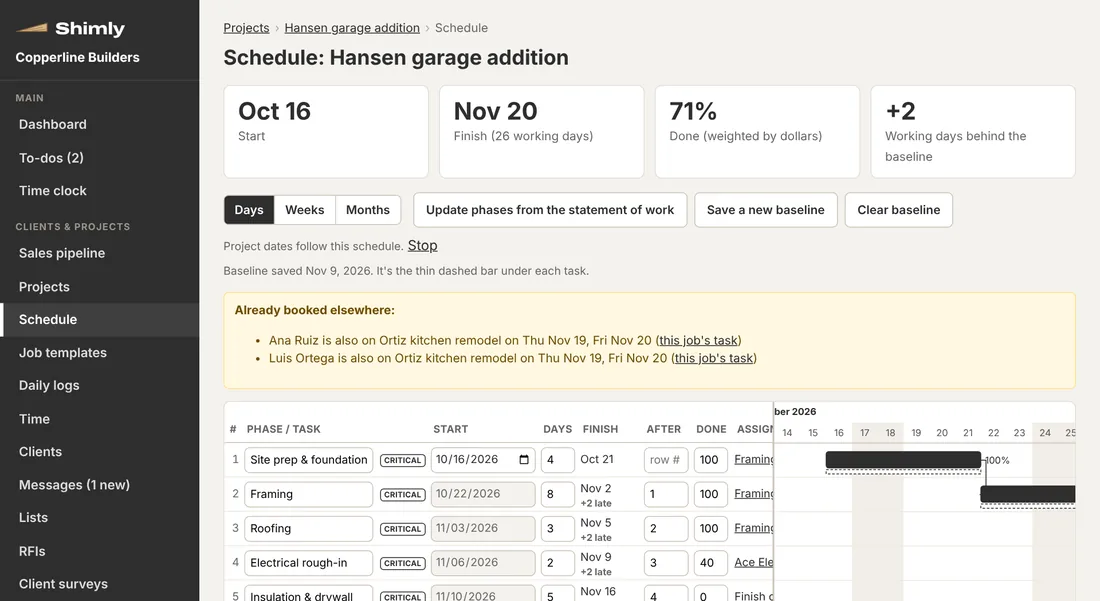
A schedule for each job with phases and tasks that depend on each other. Move one and the rest follow, around weekends and days off.
- The weather forecast alongside the schedule, with a warning on outdoor work when rain, wind or cold is coming
- Assign people, crews or subs, and see who's where this week
- Each person can get their week by email
- Every job on one company timeline
- Save a job as a template and start the next one like it with the schedule, to-dos and selections laid out
Daily logs, to-dos and documents
A record of every day on the job, a short list of what needs doing, and the paperwork in one place.
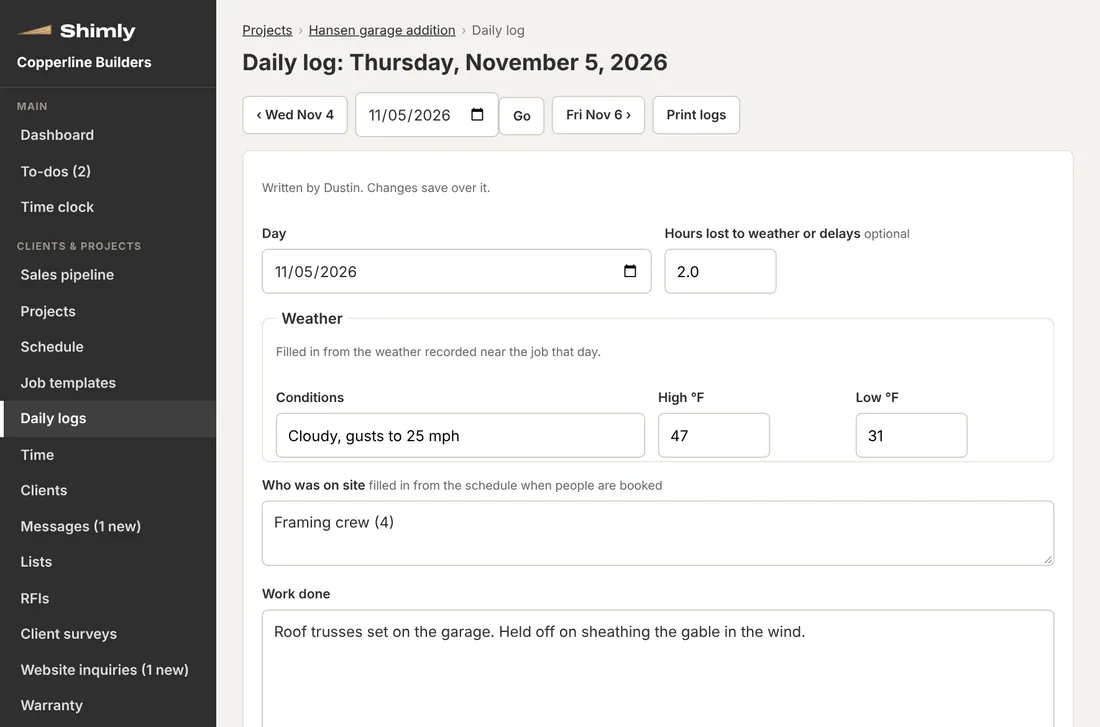
- Daily logs with the weather filled in for you: who was on site, work done, deliveries, inspections, problems and photos
- Share a day's update with the client in their portal
- To-dos for anyone on the team, with a morning reminder email
- Plans, permits, contracts and insurance for each job, with a warning before anything expires
- Send any document to be signed online
RFIs: questions with answers on record
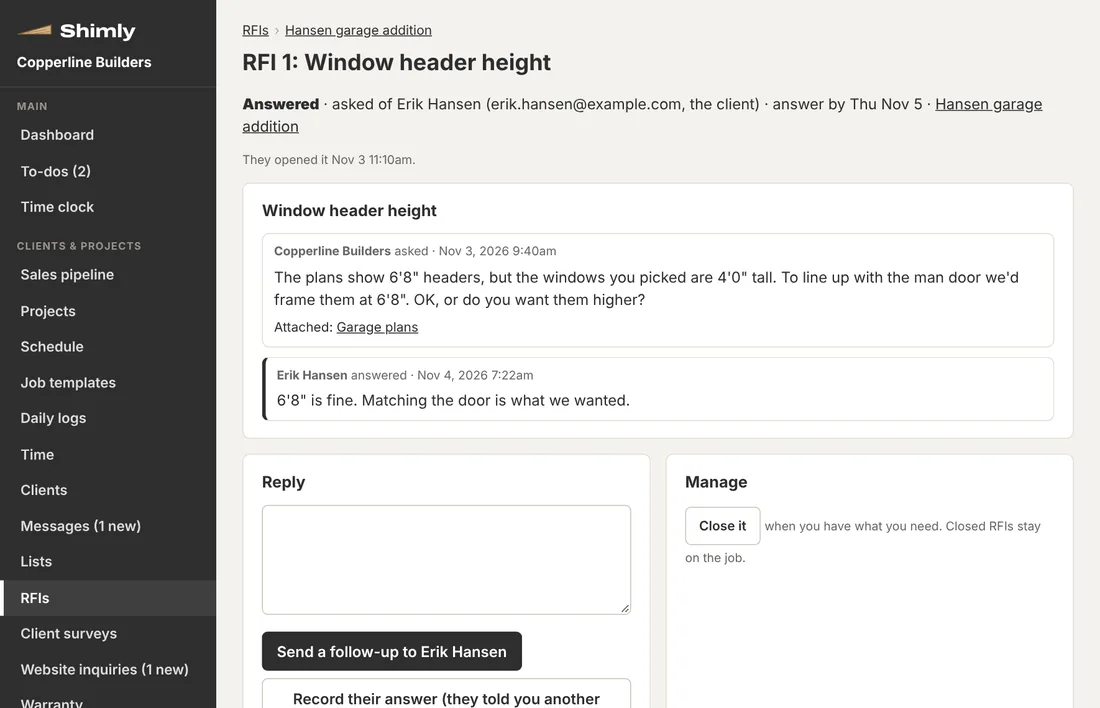
Ask the client, a sub or anyone a formal question, with a due date and the plans attached. They answer from a link, and the question and answer stay on the job.
- Numbered for each job, with who was asked, when they opened it and when they answered
- A reminder goes out if the answer is late
- Follow-ups and answers they gave you by phone, all on the record
- Signed-in subs see the questions waiting for them
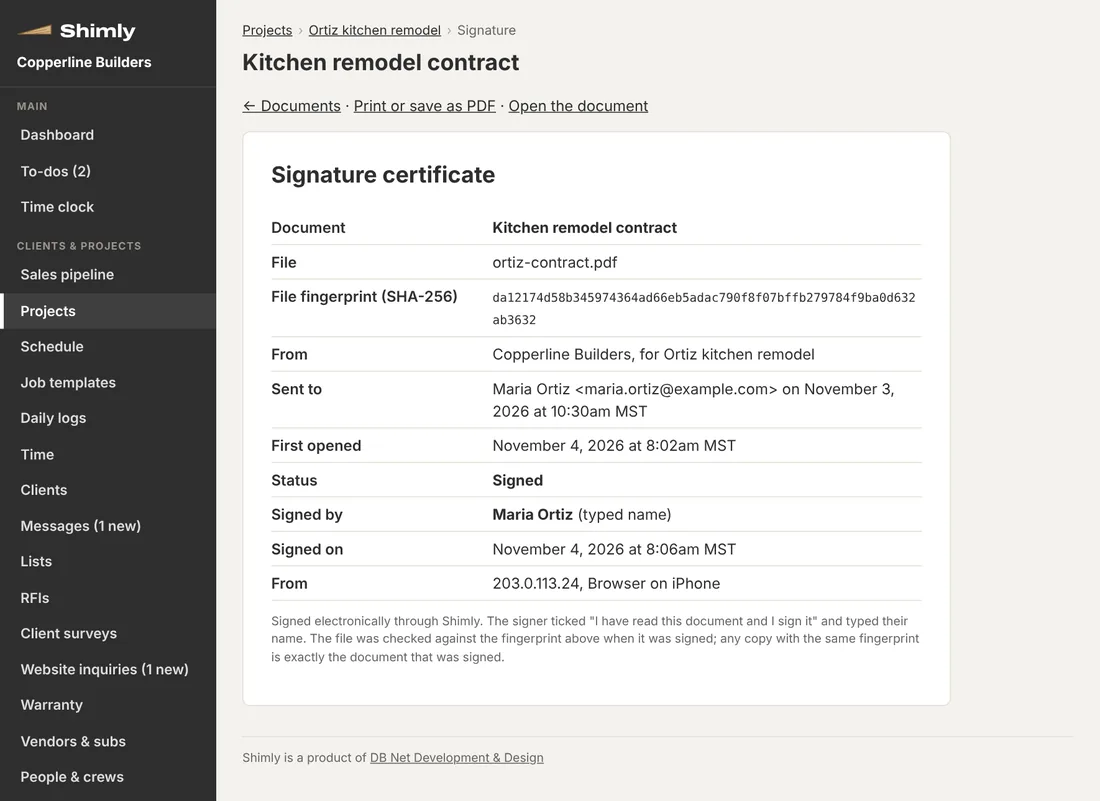
Any document, signed online
Send a contract, a permit form or any PDF to the client, a sub or anyone else to sign. They read it and sign from their phone, with no account.
- A signature certificate with the time, device and a fingerprint of the exact file
- They can say why if they don't want to sign
- Both of you get the signed copy
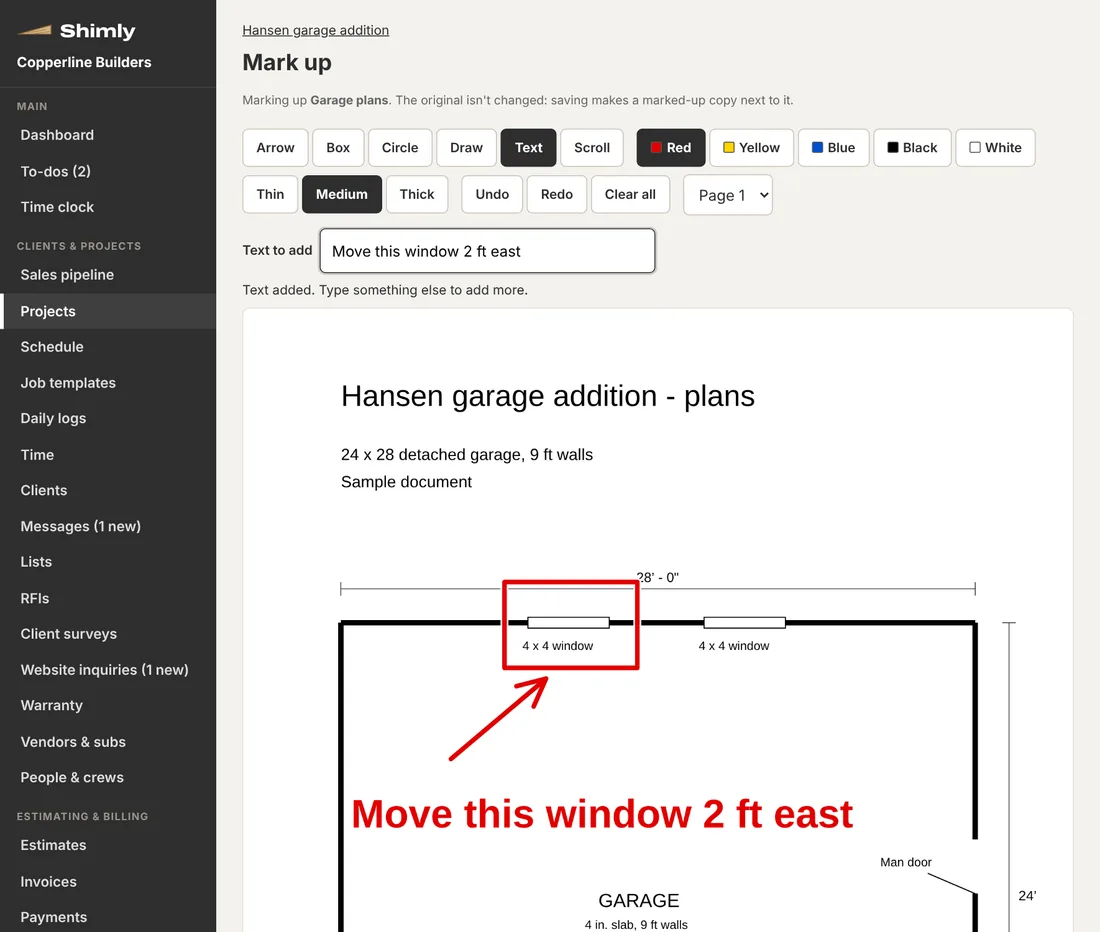
Mark up photos and plans
Draw on a photo or a page of the plans with arrows, boxes, circles and words, from a phone or a computer. Saving makes a marked-up copy next to the original.
- Any page of a PDF plan, as well as photos
- Pick the color and line thickness; undo and redo
- Change the markup later; the original is never touched
- Documents can be marked up too, on Pro and Complete
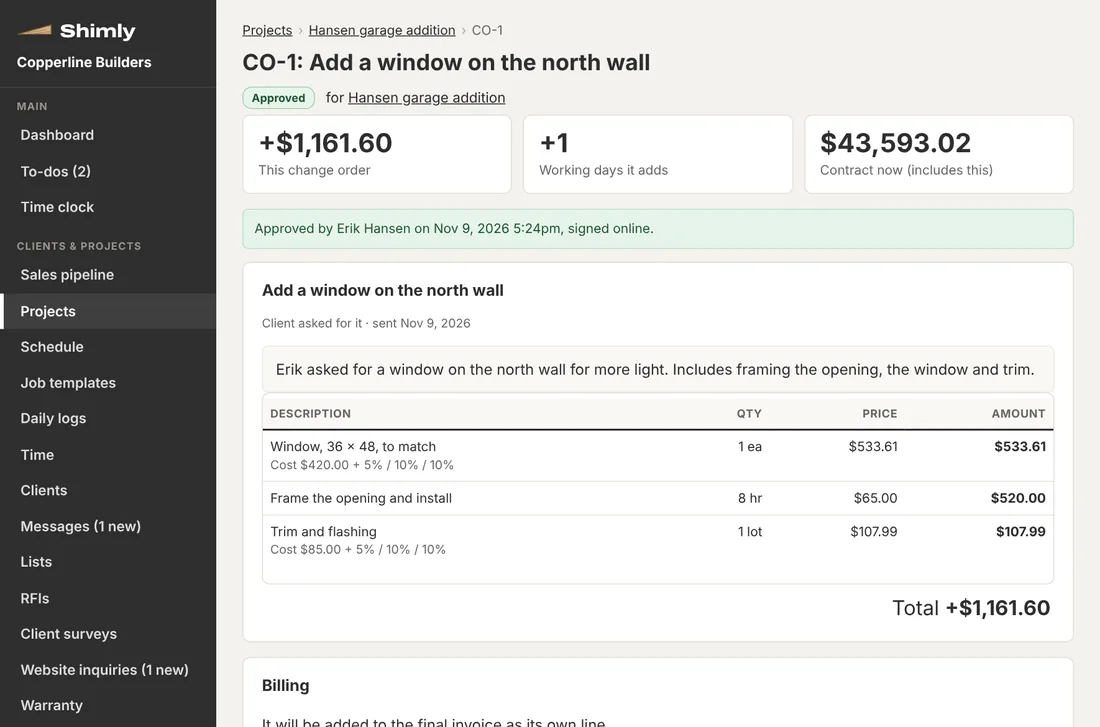
Change orders
Price a change, add the days it takes, and send it. The client signs it online, or you record that they agreed by phone.
- Bill it now or put it on the final invoice
- The contract total updates on its own
- Every change order on the job's record
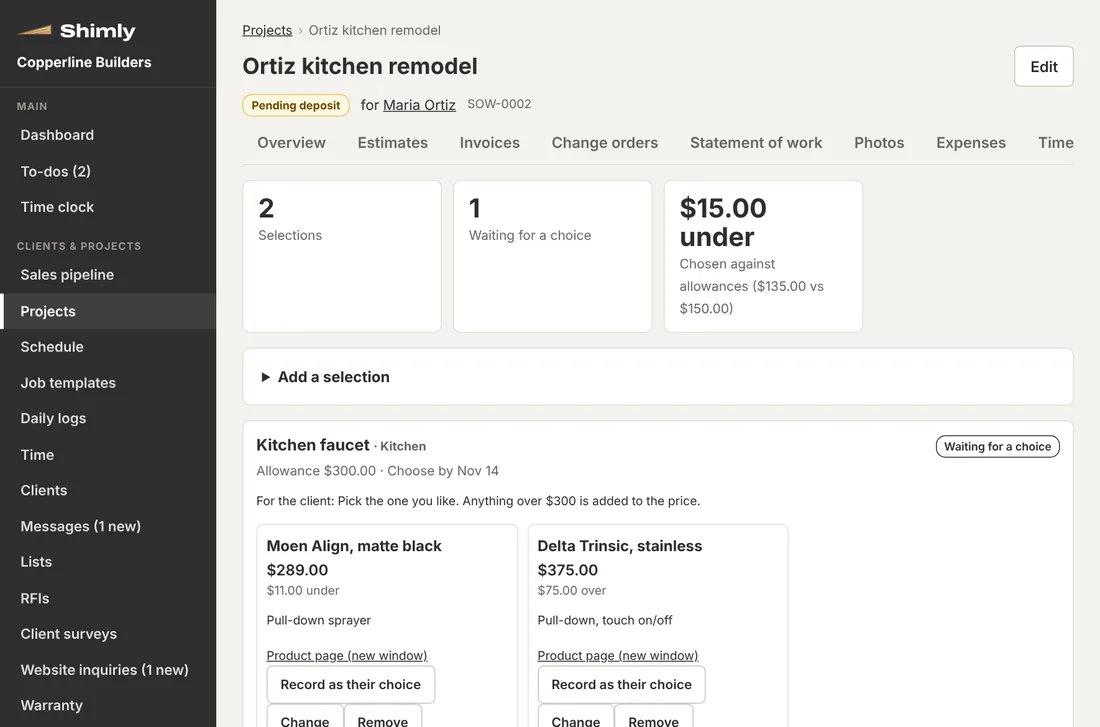
Selections and allowances
List the options for each choice, like a faucet or a flooring, with prices and pictures. The client picks in their portal and sees how it compares with the allowance.
- Choose-by dates, with overdue choices flagged
- Lock a choice once it's ordered
- One click turns the difference from the allowance into a change order
Messages with clients and subs
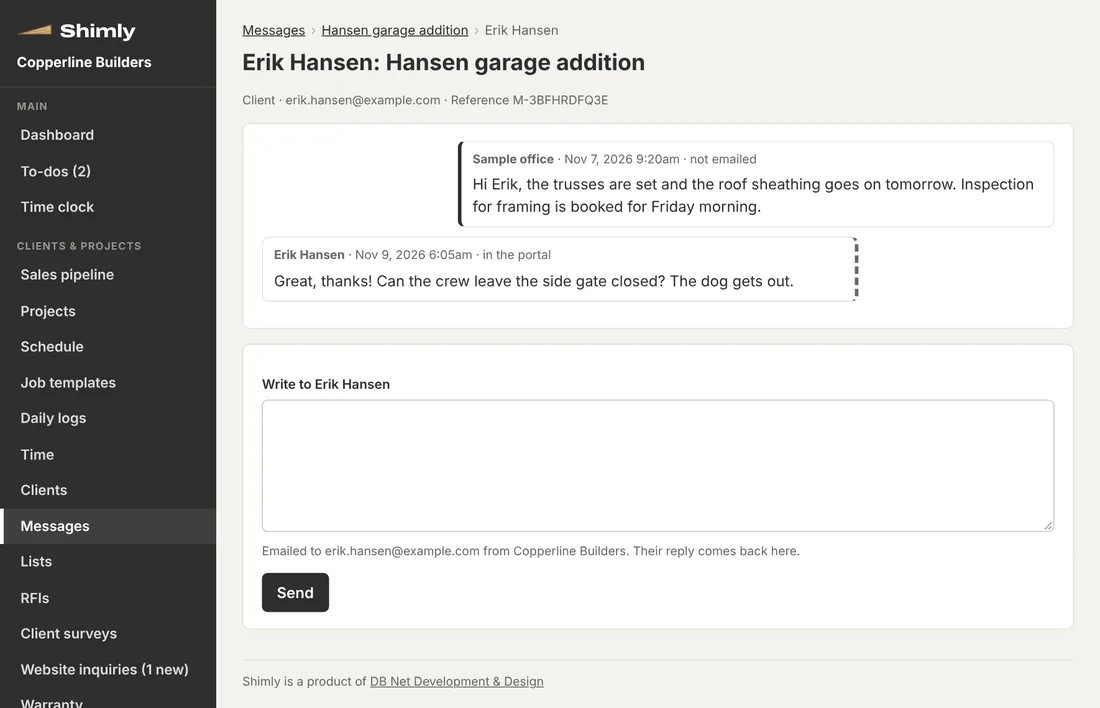
One conversation per job with the client, and one with each sub. Messages go by email from your business name, and replies come back into Shimly.
- Clients can also answer from their project page
- Every message kept on the job, not in someone's inbox
- The menu shows how many are new
Text messages, along with the emails
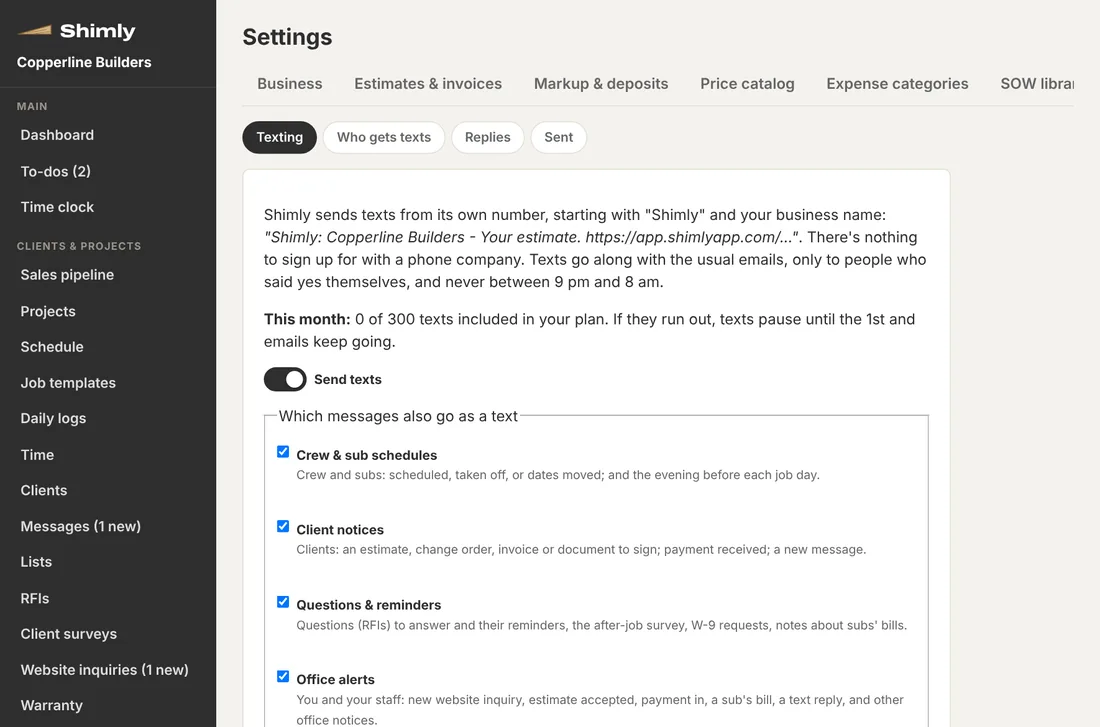
Clients, crew and subs can choose to get a text as well as the email: an estimate or invoice to look at, where they're working tomorrow, a question to answer. Shimly sends them from its own number, so there's nothing to set up with a phone company.
- Clients get a text with the link when there's an estimate, change order, invoice or document for them
- On Pro and Complete, your crew and subs get a text when they're scheduled or a date moves, and the evening before each job day
- You choose which kinds of message go as texts; replies come back into Shimly and to your email
- People sign up themselves and can stop any time; no texts between 9 pm and 8 am
- 300 texts a month included, at no extra charge
A dashboard for every job
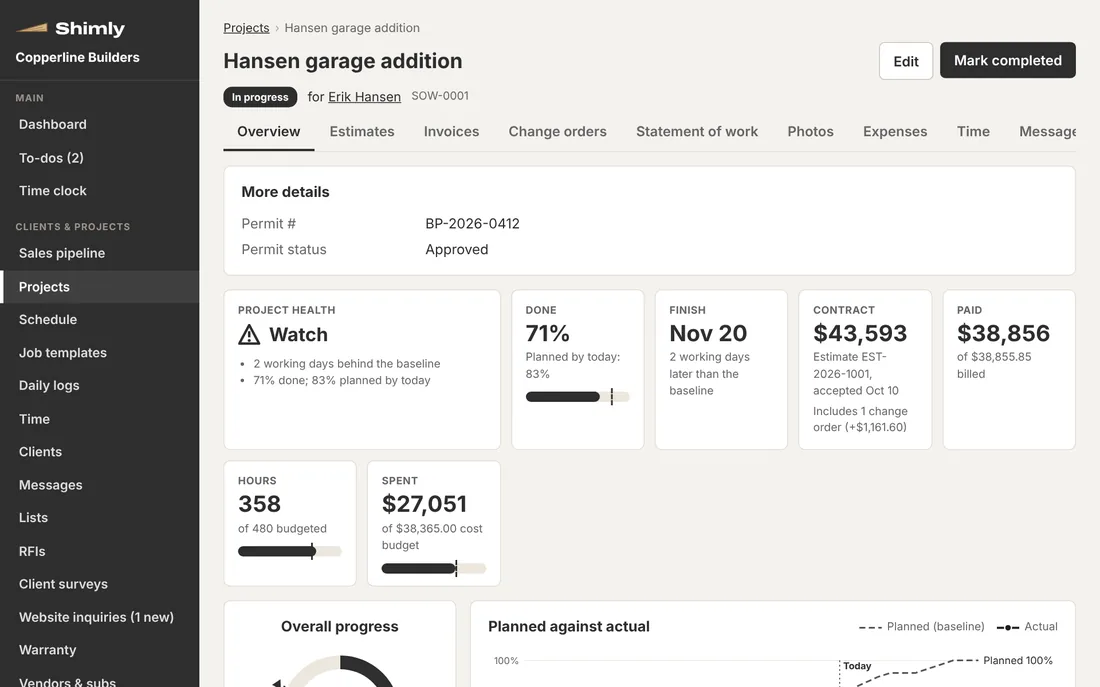
Open a job and see where it stands: progress against the plan, money in and out, and anything running late.
- Contract, billed, paid and spent at a glance
- Cost budget against what's been spent, with a forecast
- Money in and out by month
Job costs, receipts and time
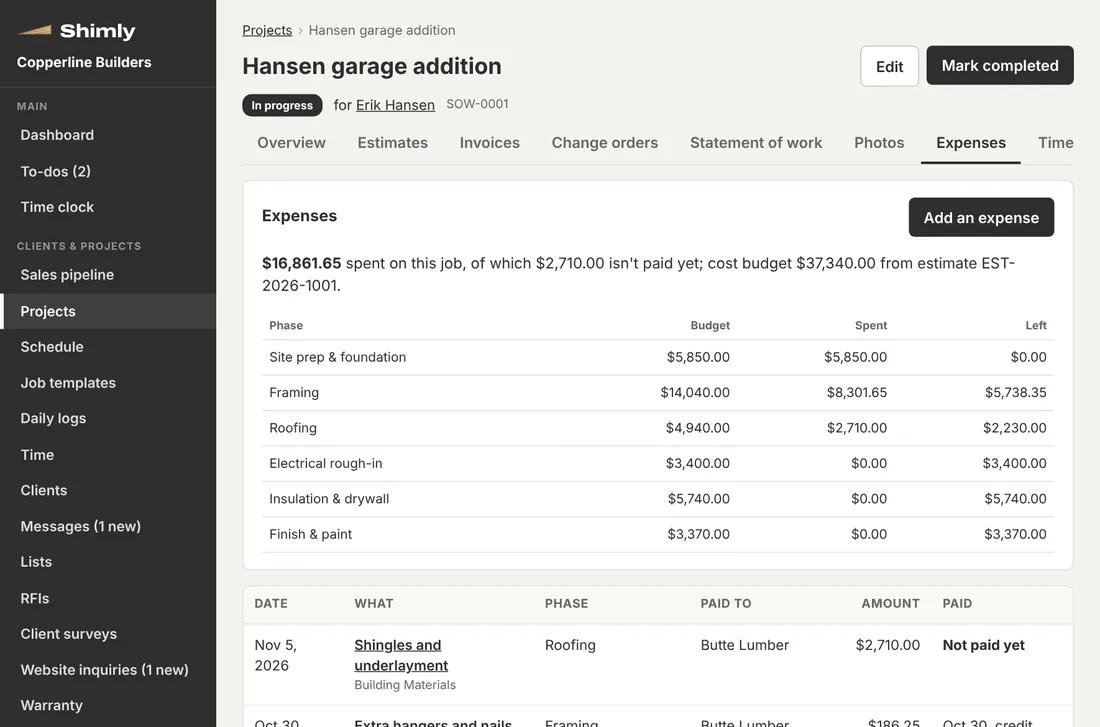
Expenses with receipt photos, tied to the job and phase. Your crew logs hours or piece work by job and task from their phones.
- Budget against actual for each phase
- Your crew can add expenses and receipts from the field
- Vendors and subs with insurance dates and W-9s collected online
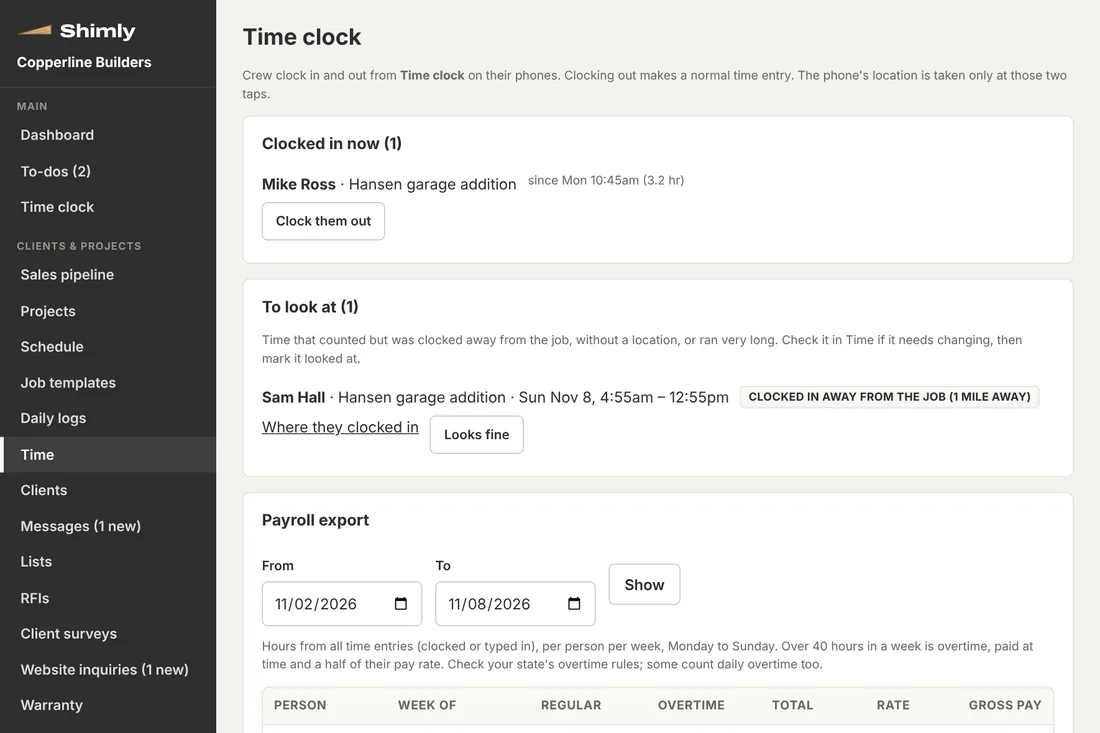
A time clock with the job's location
Your crew clocks in and out of a job from their phones. Clocking out makes the time entry for them, and the office sees who's on the clock right now.
- The phone's location is checked only at clock in and clock out, never in between
- Clock-ins far from the job, without a location or running too long are flagged for a look
- Weekly hours per person with overtime, downloadable for payroll
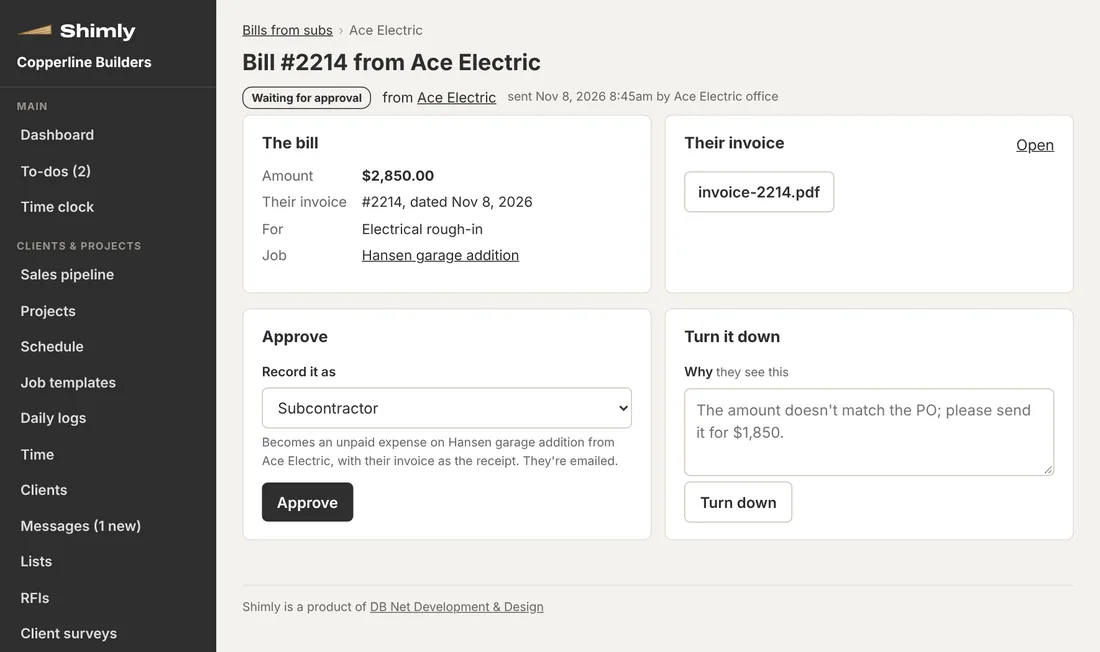
Subs sign in: bills and lien waivers
Invite your subs to sign in. They send their bills with the invoice attached, sign lien waivers online, and keep their W-9 and insurance up to date themselves.
- Approve a bill and it becomes the job expense, with their invoice as the receipt
- Conditional and unconditional lien waivers, signed online, with your own wording
- On Pro and Complete they also see the work they're booked on, plans you share and their messages
- On Pro and Complete, a Sunday email gives each sub their next two weeks of work across all your jobs, and anything waiting on them
- They never see your clients, other subs or your numbers
Reports
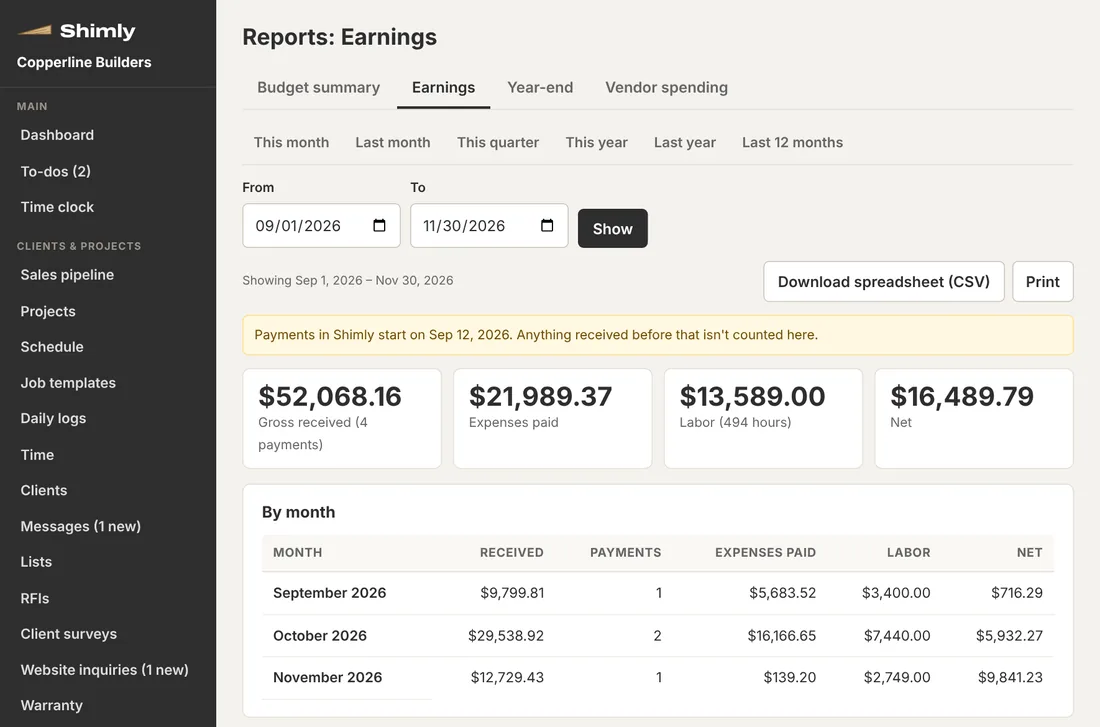
The numbers a small builder actually gets asked for, a click away and downloadable for your accountant.
- Budget summary across every job
- Earnings for any dates, with a printable statement for insurers and lenders
- Year-end summary and vendor spending
A contact form for your website
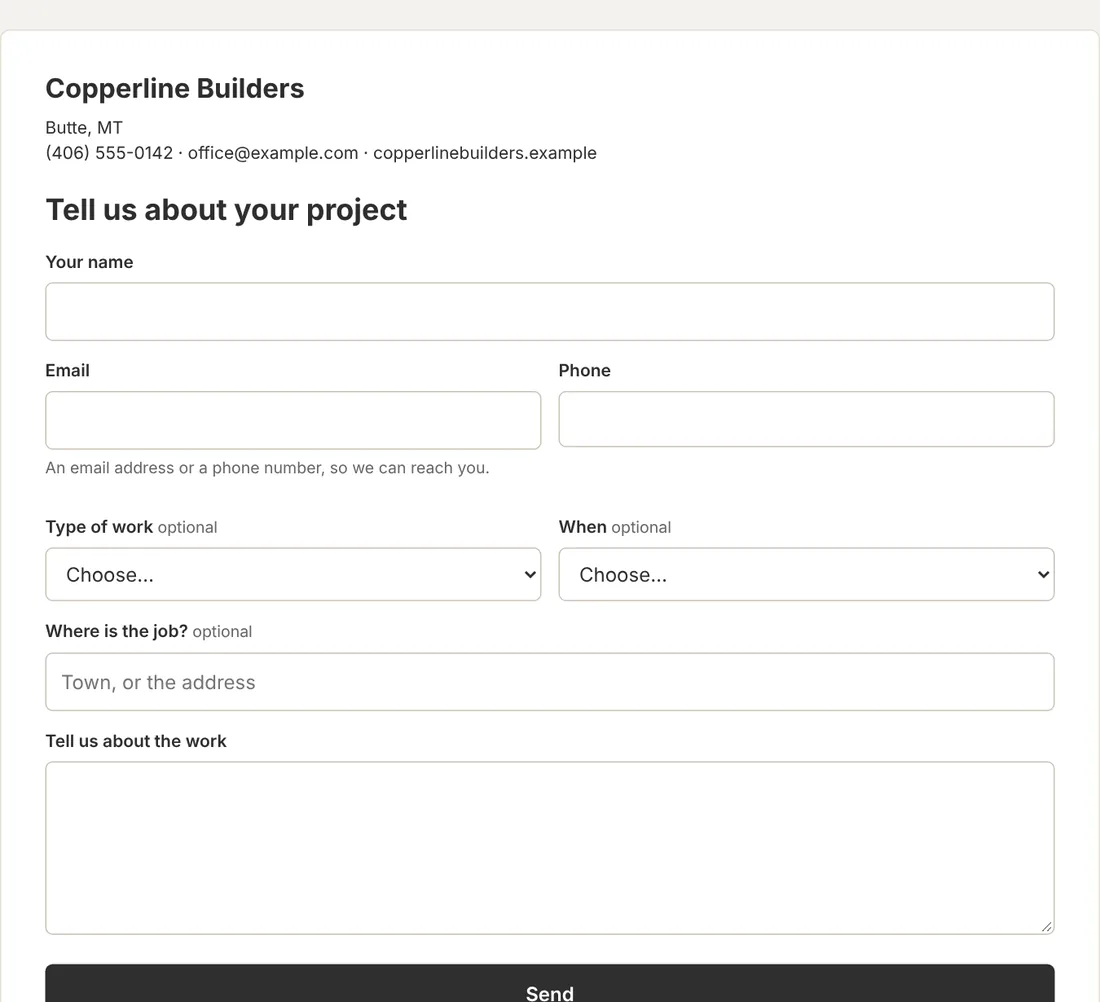
Put Shimly's form on your own website. Inquiries land in Shimly and in your inbox, and one click turns one into a client.
- Works with WordPress, Wix, Squarespace or a link
- Spam stopped before it reaches you
- An automatic "we got your message" reply in your name
Client surveys and reviews
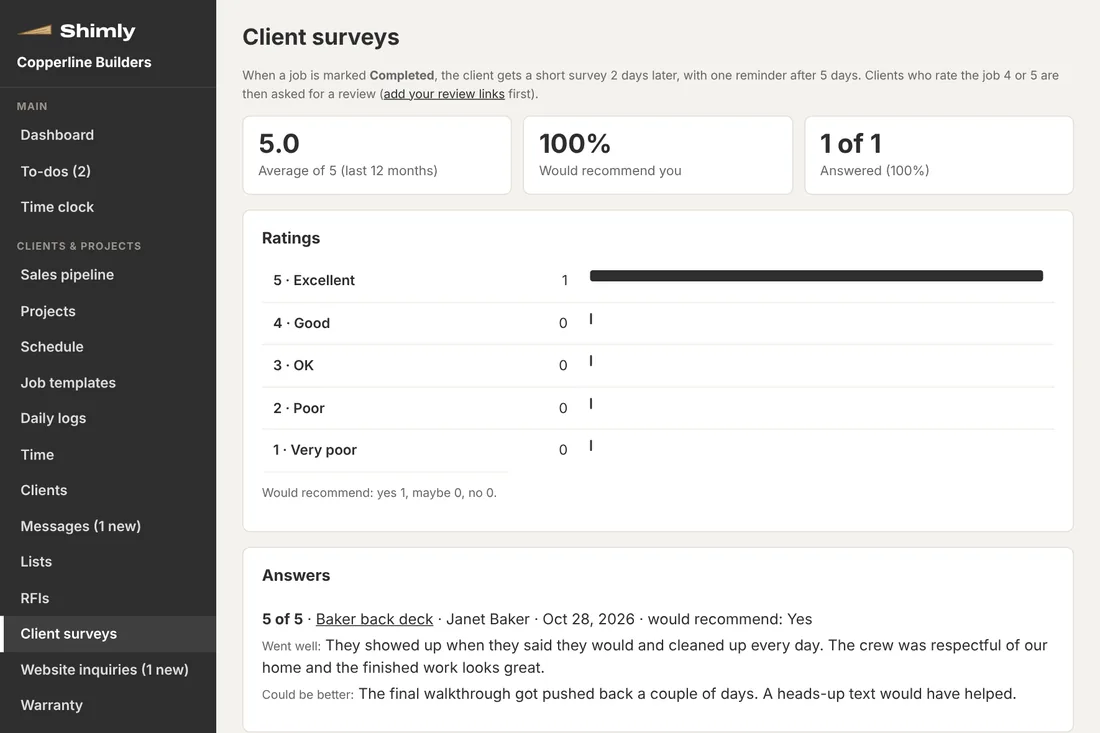
When a job is finished, the client gets a short survey a couple of days later. Clients who rate you 4 or 5 are then asked to review you on Google, Facebook or wherever you choose.
- A few questions that take about a minute on a phone, with no account
- Average rating, would-recommend and every answer in one place
- Quotes clients have said you may use on your website
AI help with estimates
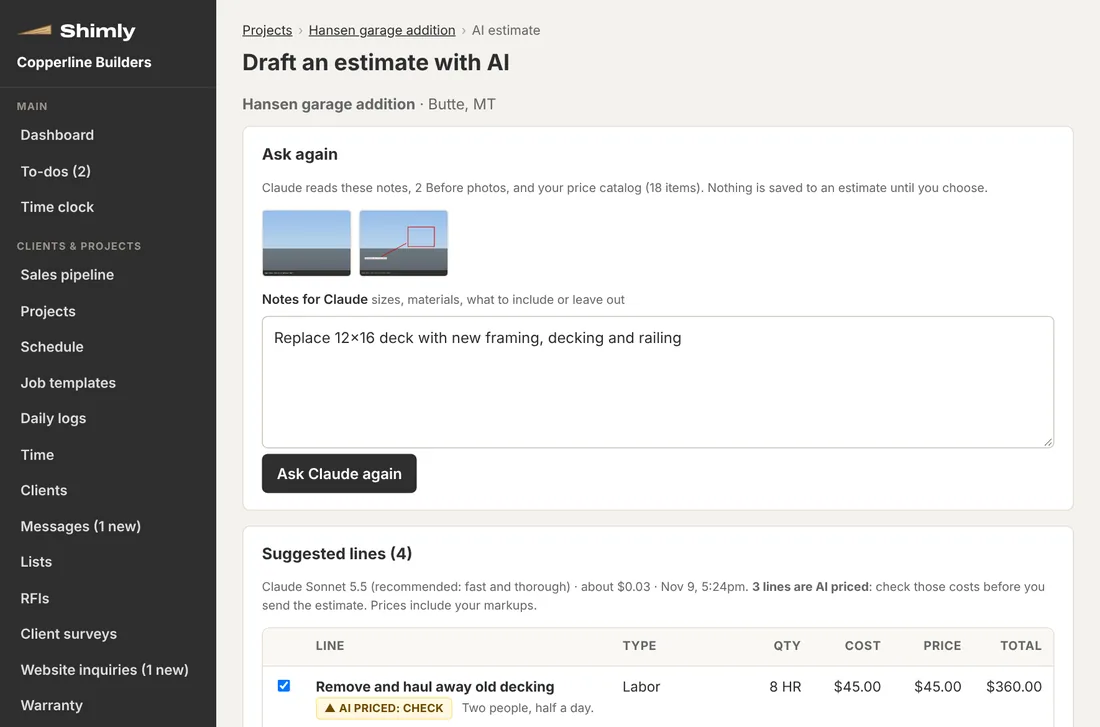
Describe the job and add your Before photos, and Claude suggests estimate lines using your own price catalog. You check and change them before anything goes to a client.
- Uses your own Anthropic account: most estimates cost a few cents
- Lines from your catalog keep your cost; others are marked to check
- Your markups applied
Make it fit the way you work
Every company tracks a few things nobody else does. Add them yourself, with no setup call and no extra charge.
Your own fields
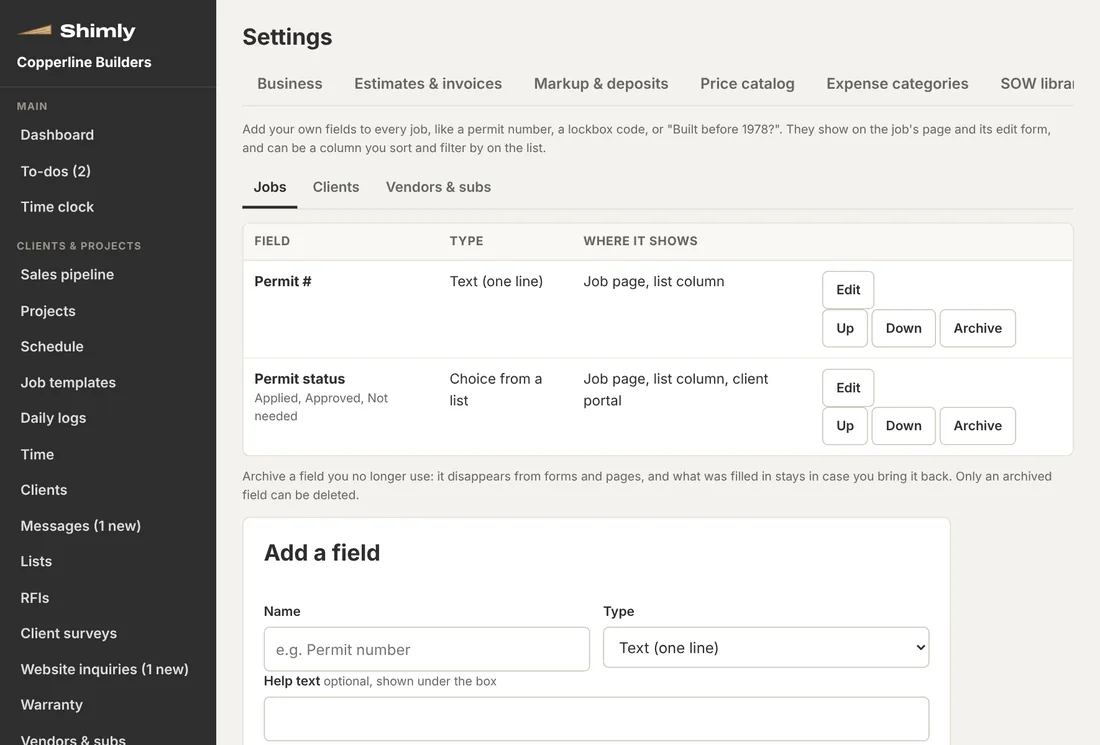
Add the details you track to jobs, clients and subs: a permit number, a gate code, a license number. They show on the record and can be a column on the list.
- Text, numbers, money, dates, yes/no or a choice from your own list
- Choose which ones the client sees in their portal
- Sort and filter the list by them
Lists for anything
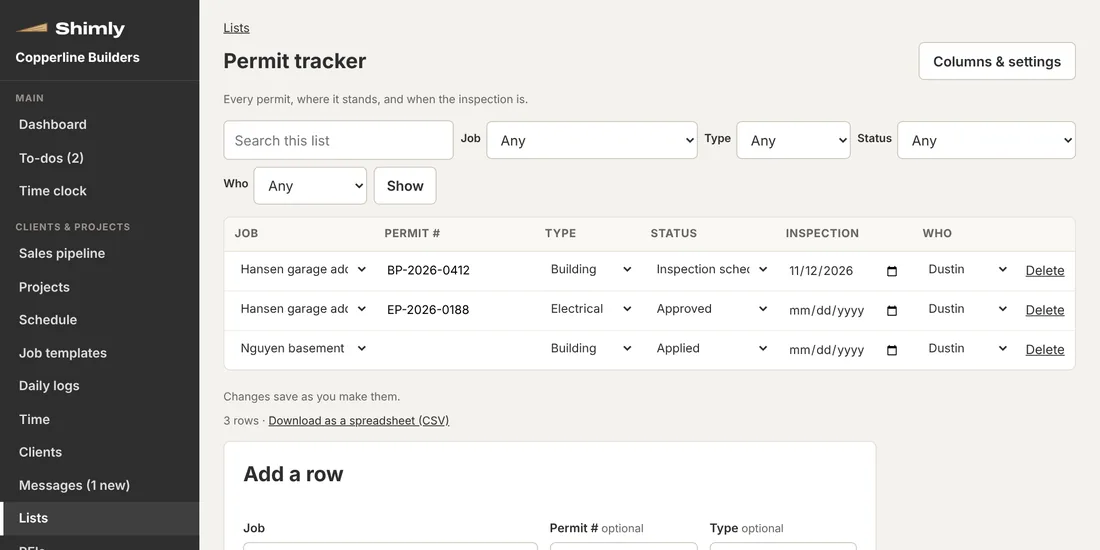
A punch list, a permit tracker, a closeout checklist or the shop's equipment: start from a ready-made list or make your own columns. Changes save as you type.
- Rows for one job or across every job
- Due dates and who's responsible, with a morning reminder
- Download any list as a spreadsheet
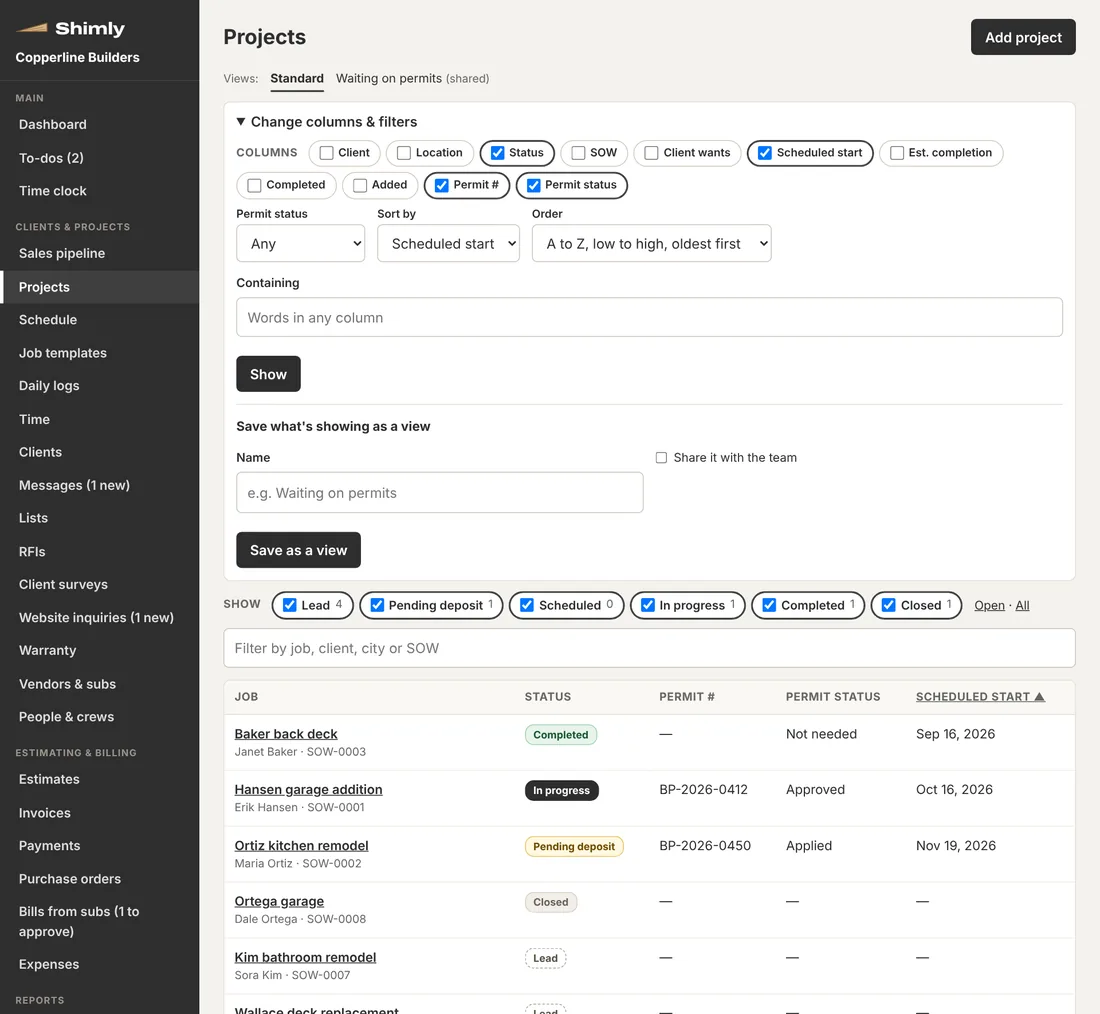
Saved views and spreadsheets
Pick the columns, filters and sort order for the Projects and Clients lists, and save it as a view for yourself or the whole team.
- Your own fields can be columns
- One click back to the standard list
- Download exactly what's showing as a spreadsheet (CSV)
Job templates
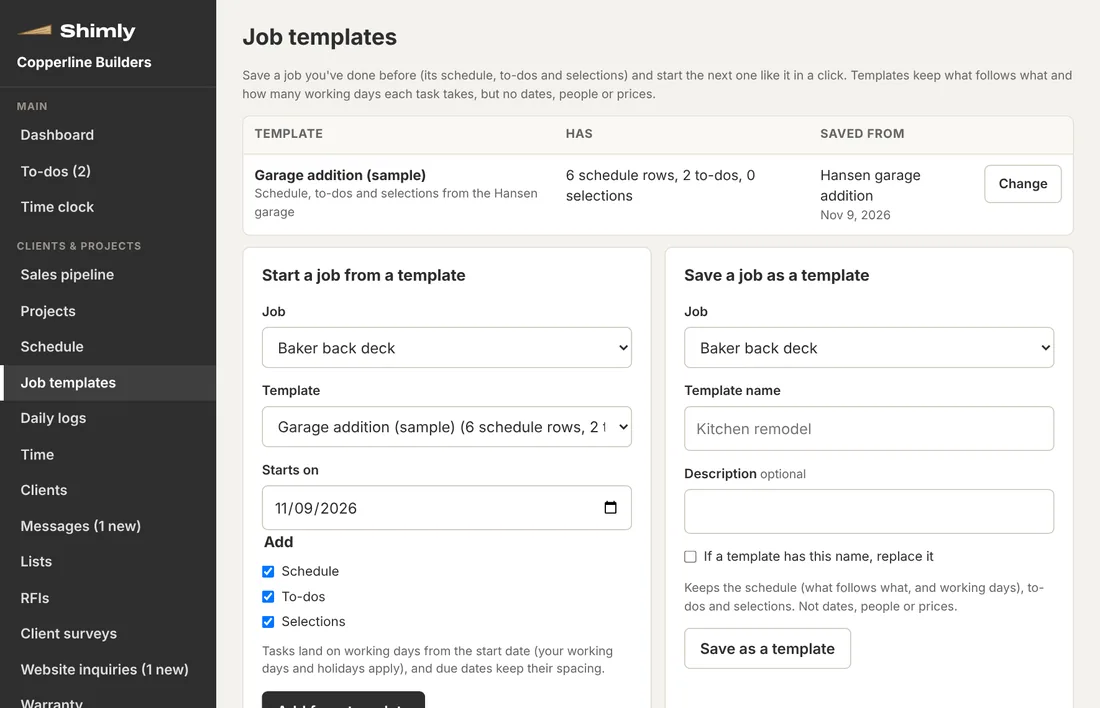
Save a job you've done before and start the next one like it in a click: the schedule with what follows what, the to-dos and the selections.
- Tasks land on your working days from the new start date
- No old dates, people or prices come along
- Pick which parts to add
For bigger companies: the Complete plan
Tools for builders who run several jobs with a lot of subs and suppliers.
Subcontractor bids
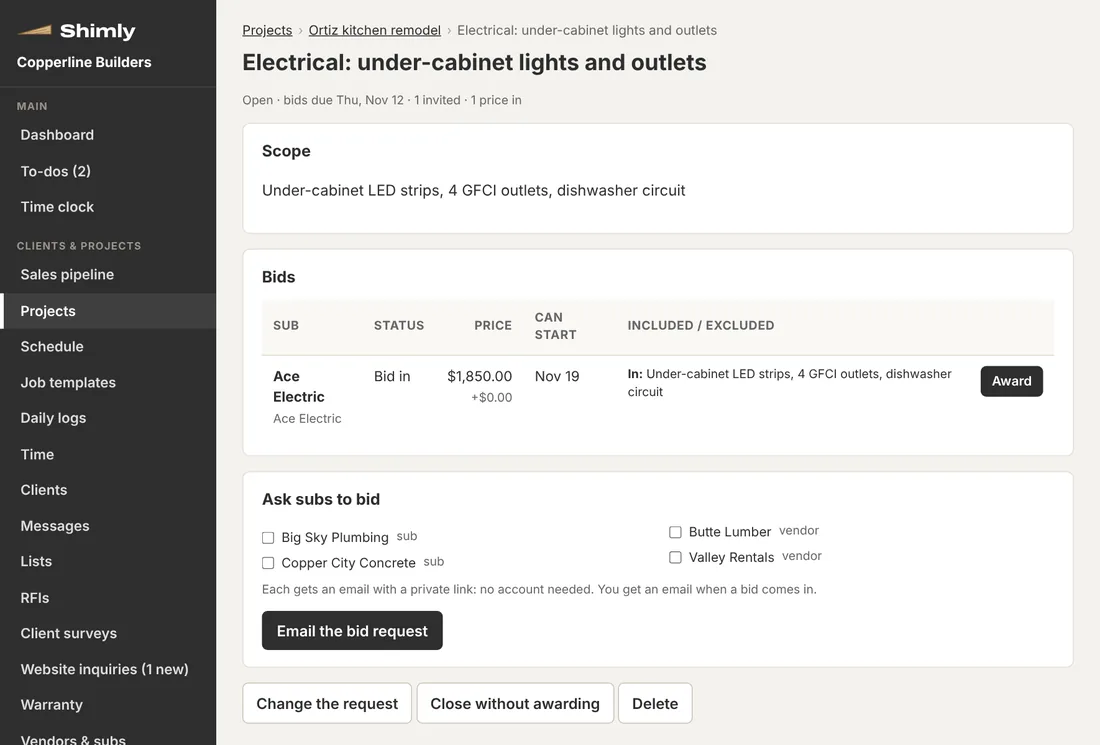
Send the scope and plans to several subs. Each gets a private link to see the work and send a price, with no account needed. Compare the bids side by side and award one.
- Lowest first, with the difference from the lowest shown
- Awarding can make the purchase order and book the sub on the schedule
- Everyone else is told, politely, that it went to another bid
Purchase orders
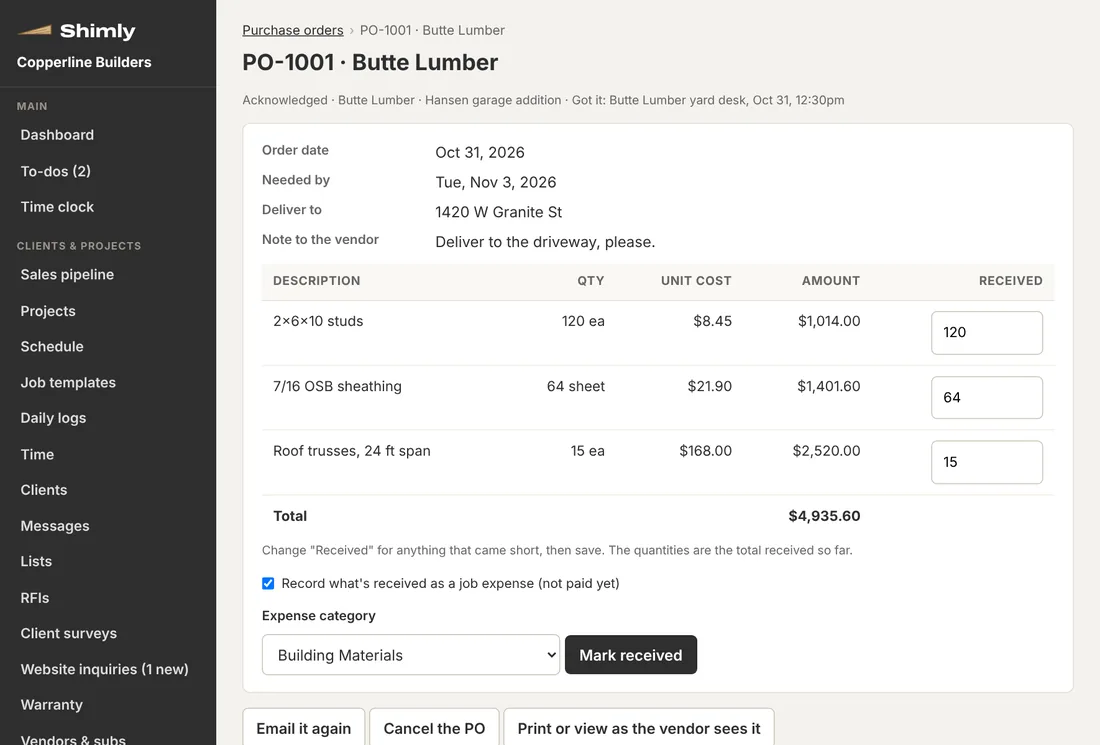
Numbered POs to suppliers and subs, for a job or for the shop. The vendor confirms online with one click, and receiving records the cost.
- Mark what arrived, in full or in part
- Receiving can record the expense on the job, or as overhead
- Open, overhead and all POs in one list
Automatic reminders and alerts
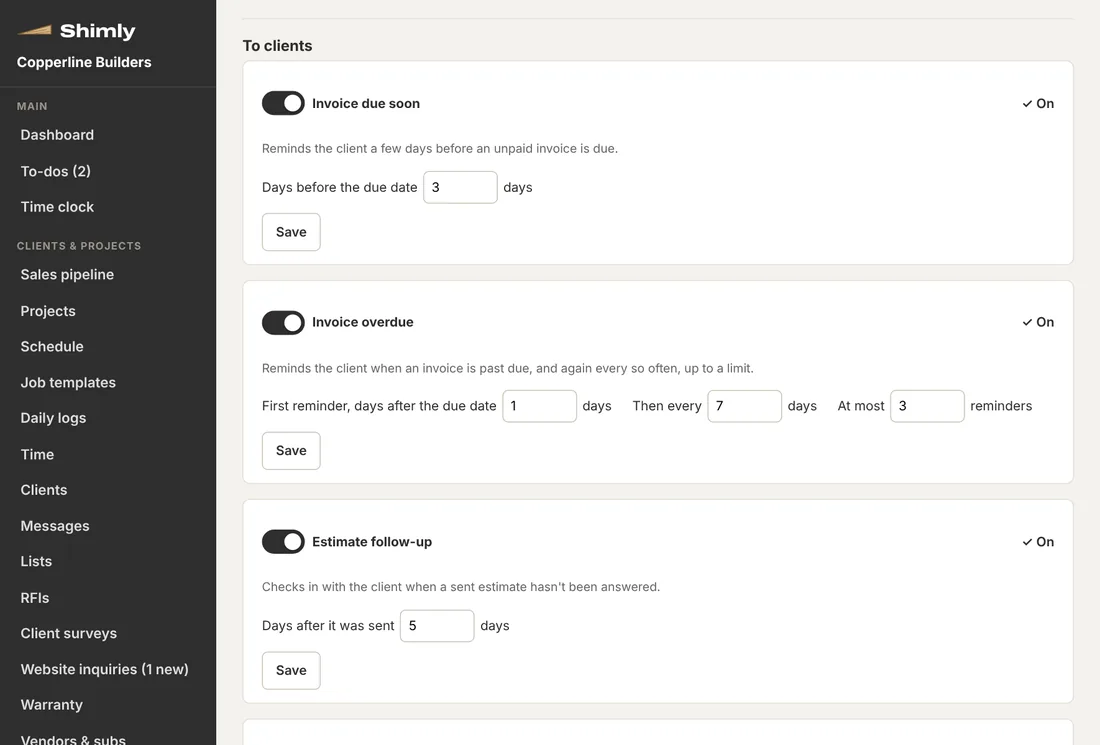
Ready-made rules you switch on: reminders to clients and subs in your name, and one summary email a day for the office. Nothing is ever sent twice.
- Invoice due and overdue reminders, estimate follow-ups and choices coming due
- Bid and insurance reminders to subs
- Office alerts: jobs over budget, late POs, missing daily logs, unpaid bills and more
- See what would go out today before you turn one on
Warranty requests
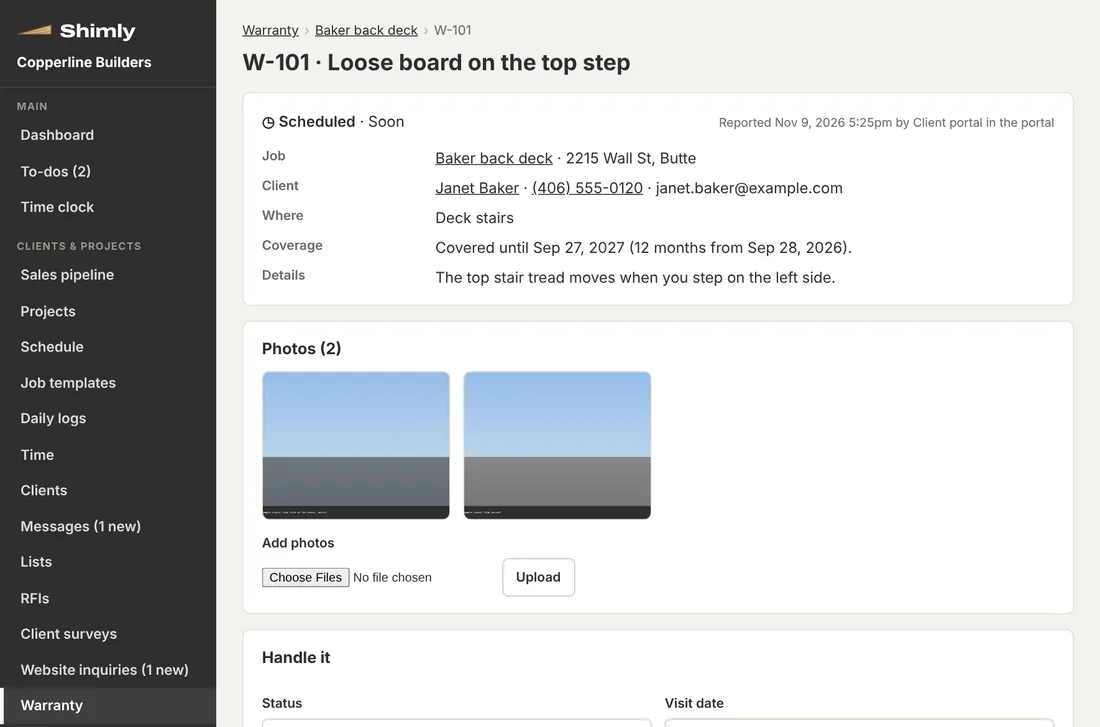
After the job, clients report a problem from their project page with photos. You schedule the fix, assign someone, and they see the status.
- Covered for the warranty length you set, from the day the job finished
- Urgent ones flagged, out-of-warranty ones marked
- The client is emailed when it's scheduled and fixed
Also in every plan
Your whole team signs in at no extra cost, with roles for office and field. Install Shimly on your phone or computer like an app, and stay signed in on your own devices for 30 days. Sign in with Google or a password, two-step sign-in, photos on every job, and emails that go out in your name with replies coming to your own address. Your information is never sold.